Airbase Console
The Airbase Console is the web-based dashboard for managing your Airbase applications, teams, and infrastructure. It provides a graphical interface for tasks that can also be performed via the CLI.
What is the Console?
The Airbase Console is the one-stop-shop for everything you need to manage your applications on Airbase. It's accessible via web browser and provides an intuitive interface for both development and administration tasks.
Access: console.airbase.tech.gov.sg
Authentication: TechPass or approved government email
Console vs CLI
Airbase provides two interfaces for managing applications:
| Task | Console | CLI | When to Use |
|---|---|---|---|
| View logs | ✅ Real-time streaming | ❌ Not available | Use Console for log viewing |
| Deploy | ❌ Not available | ✅ Full control | Always use CLI for deployment |
| Create teams | ✅ Web form | ❌ Not available | Use Console |
| Manage projects | ✅ Visual overview | ✅ Via commands | Console for overview, CLI for CI/CD |
| View credentials | ✅ Generate/rotate | ❌ Not available | Use Console |
Console strengths: - Visual overview of all projects - Easy team and project creation - Real-time log viewing - Credential management
CLI strengths: - Build and deployment workflows - CI/CD pipeline integration - Scriptable and automatable - Configuration management
Key Features
Project Management
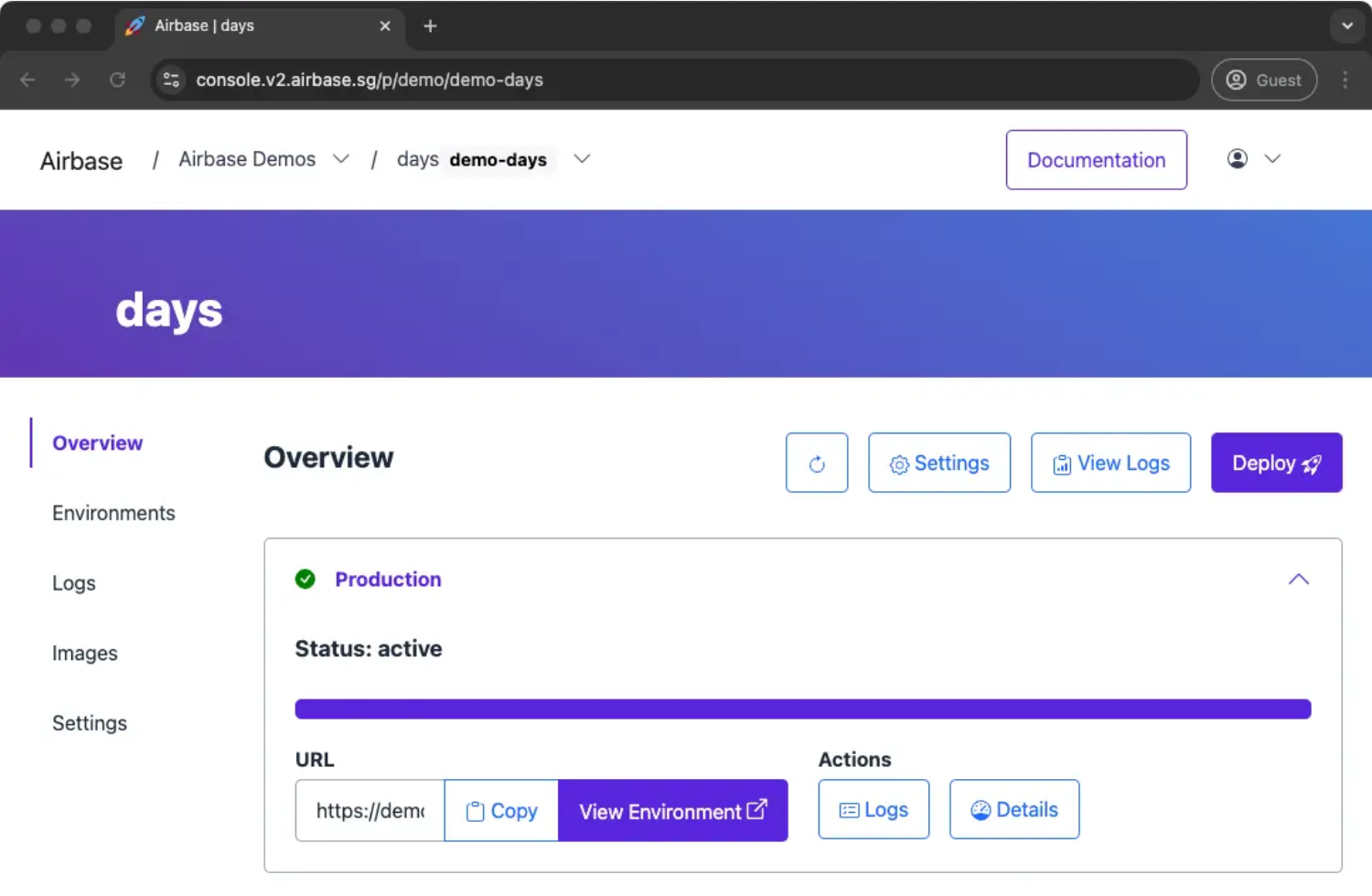
The Projects Overview provides a centralized view of all your applications:
- Project status - See which environments are deployed
- Quick actions - Access logs, settings, and details
- Environment URLs - Click to open deployed applications
- Recent activity - View deployment history
Common tasks: - Create new projects - View project details - Access project logs - Check deployment status
See: Getting Started Tutorial for creating your first project
Team Administration
The Console provides team management capabilities:
- Create teams - Set up new teams for projects
- Manage members - Add or remove team members (future feature)
- Team settings - Configure team-level preferences
Access: Console → Settings → Teams
Who can create teams: All authenticated users
Team handle: Lowercase letters and hyphens only (e.g., data-science, platform-eng)
Credential Management
Generate and manage API credentials for CI/CD pipelines:
- Generate credentials - Create new access keys
- Rotate credentials - Invalidate old keys and create new ones
- View existing credentials - List active credentials (keys hidden for security)
Access: Console → Settings → Credentials
Credential format:
Use cases: - GitLab CI/CD pipeline authentication - GitHub Actions authentication - Automated deployment scripts
See: GitLab CI/CD Integration for using credentials in pipelines
Log Viewing
The Console provides real-time log streaming for deployed applications:
- Environment selector - Switch between production, staging, and custom environments
- Real-time updates - Logs stream automatically as they arrive
- Scrollable history - View recent log entries
- Browser search - Use Ctrl+F/Cmd+F to find specific entries
Access: Console → Select Project → Logs (sidebar)
See: View Logs How-To for detailed log viewing instructions
Navigating the Console
Dashboard
URL: console.airbase.tech.gov.sg/dashboard
Shows: - Overview of all your teams - Quick access to recent projects - Platform announcements (if any)
Projects View
URL: console.airbase.tech.gov.sg/projects
Shows: - List of all projects across all teams - Project status and environments - Quick action buttons
Actions: - Click project name to view details - Click "Logs" to view application logs - Click URL to open deployed application
Project Details
URL: console.airbase.tech.gov.sg/projects/{team}/{project}
Shows: - Project configuration (instance type, port) - Deployed environments with URLs - Project metadata
Actions: - View environment-specific details - Access project logs - Copy deployment URLs
Settings
URL: console.airbase.tech.gov.sg/settings
Sections: - Teams - Create and manage teams - Credentials - Generate API keys for CI/CD - Profile - View your account information
When to Use the Console
✅ Use Console for:
- Initial setup - Create teams and projects
- Monitoring - View logs and deployment status
- Administration - Manage credentials and team settings
- Quick checks - Verify deployments are running
- Troubleshooting - Stream logs in real-time
⚠️ Use CLI for:
- Building - Build Docker images from source
- Deploying - Deploy applications to environments
- Automation - CI/CD pipelines and scripts
- Bulk operations - Manage multiple environments
- Advanced tasks - Destroying environments, custom configurations
Common Workflows
Creating a New Project
- In Console: Create team (if needed)
- In Console: Create project under team
- Locally: Clone/create application code
- Locally: Configure
airbase.jsonwith project handle - Via CLI: Build and deploy application
Monitoring Deployments
- Via CLI: Deploy application
- In Console: Navigate to Projects → Select project
- In Console: Click "Logs" to view streaming logs
- In Console: Click URL to test application
- In Console: Verify application is responding
See: View Logs
Setting Up CI/CD
- In Console: Navigate to Settings → Credentials
- In Console: Generate new credentials
- In GitLab: Add credentials as CI/CD variables
- In GitLab: Configure
.gitlab-ci.yml - Via GitLab CI: Automated deployments run
Console Access
Authentication
Supported methods: - TechPass (government officers) - Approved government email addresses
First-time login: 1. Go to console.airbase.tech.gov.sg 2. Click "Sign In" 3. Choose authentication method 4. Complete authentication flow 5. Console dashboard appears
Browser Requirements
Supported browsers: - Chrome/Chromium (recommended) - Firefox - Safari - Edge
Not supported: - Internet Explorer
Network Access
From SEED devices: ✅ Full access
From personal devices: ✅ Full access (public officers with approved accounts)
From external networks: ⚠️ Authentication required
Troubleshooting
"Access Denied" Error
Cause: Account not authorized for Airbase
Solution: Contact your agency's Airbase administrator or submit access request
Can't See Projects
Cause: Not member of any teams with projects
Solution: - Create a new team and project - Ask team admin to add you to existing team (future feature)
Logs Not Loading
Cause: Application not deployed or crashed
Solution: 1. Check deployment status in Projects view 2. Verify environment is listed 3. Deploy application via CLI if needed: airbase container deploy 4. Check for startup errors in logs
See Also
- Tutorial: Getting Started - Create your first project via Console
- How-To: View Logs - Detailed log viewing instructions
- How-To: GitLab CI/CD Integration - Using Console credentials in CI/CD
- Reference: CLI Commands - CLI alternative to Console tasks