Set Environment Variables
How to configure environment variables for your Airbase applications
Environment variables allow you to configure your application differently for each environment (staging, production) without rebuilding your container.
Overview
What you'll learn: - Create environment variable files - Use different variables per environment - Update variables without rebuilding - Follow security best practices
Time: 5-10 minutes
Environment Variable Files
File Naming Convention
Airbase uses a specific file naming pattern for environment variables:
project-root/
├── .env                  # Production environment
├── .env.staging          # Staging environment
├── .env.development      # Development environment
├── .env.feature-auth     # feature-auth environment
└── airbase.json
Pattern: .env.<environment-name>
Exception: Production uses .env (no suffix)
How Airbase Selects the Right File
When you deploy:
# Deploy to production → Uses .env
airbase container deploy --yes

# Deploy to staging → Uses .env.staging
airbase container deploy --yes staging

# Deploy to development → Uses .env.development
airbase container deploy --yes development
Automatic selection - No configuration needed!
Step 1: Create Environment Variable Files
For Production
Create .env in your project root:
# .env
PORT=3000
NODE_ENV=production
DATABASE_URL=postgres://prod-db.example.com/myapp
API_KEY=prod-key-xyz
LOG_LEVEL=error
For Staging
Create .env.staging:
# .env.staging
PORT=3000
NODE_ENV=staging
DATABASE_URL=postgres://staging-db.example.com/myapp
API_KEY=staging-key-abc
LOG_LEVEL=debug
For Development
Create .env.development:
# .env.development
PORT=3000
NODE_ENV=development
DATABASE_URL=postgres://dev-db.example.com/myapp
API_KEY=dev-key-123
LOG_LEVEL=debug
Step 2: Access Environment Variables in Your App
Node.js
// Read environment variables
const PORT = process.env.PORT || 3000;
const NODE_ENV = process.env.NODE_ENV || 'development';
const DATABASE_URL = process.env.DATABASE_URL;

console.log(`Running on port ${PORT} in ${NODE_ENV} mode`);
Python
import os

# Read environment variables
PORT = int(os.environ.get('PORT', 3000))
NODE_ENV = os.environ.get('NODE_ENV', 'development')
DATABASE_URL = os.environ.get('DATABASE_URL')

print(f"Running on port {PORT} in {NODE_ENV} mode")
Nginx
Use envsubst to substitute variables in configuration:
In Dockerfile:
CMD envsubst '$$PORT' < /etc/nginx/nginx.conf.template > /etc/nginx/nginx.conf && nginx -g 'daemon off;'
Step 3: Deploy with Environment Variables
First Deployment
What happens: 1. CLI reads .env.staging 2. Parses variables 3. Sends to Airbase API 4. API injects variables into container
Verify Variables Are Set
Check your application logs to see if variables are loaded correctly:
Using GitLab CI/CD with Environment Variables
When using GitLab CI/CD, you can scope environment variables to specific environments without committing secrets to your repository.
GitLab Environment Scoping
How it works:
GitLab CI/CD allows you to set different variable values for different environments (production, staging, review branches) using Environment scope.
Setup steps:
- Navigate to GitLab CI/CD Variables:
- Go to your GitLab project
-
Settings → CI/CD → Variables
-
Add variable with environment scope:
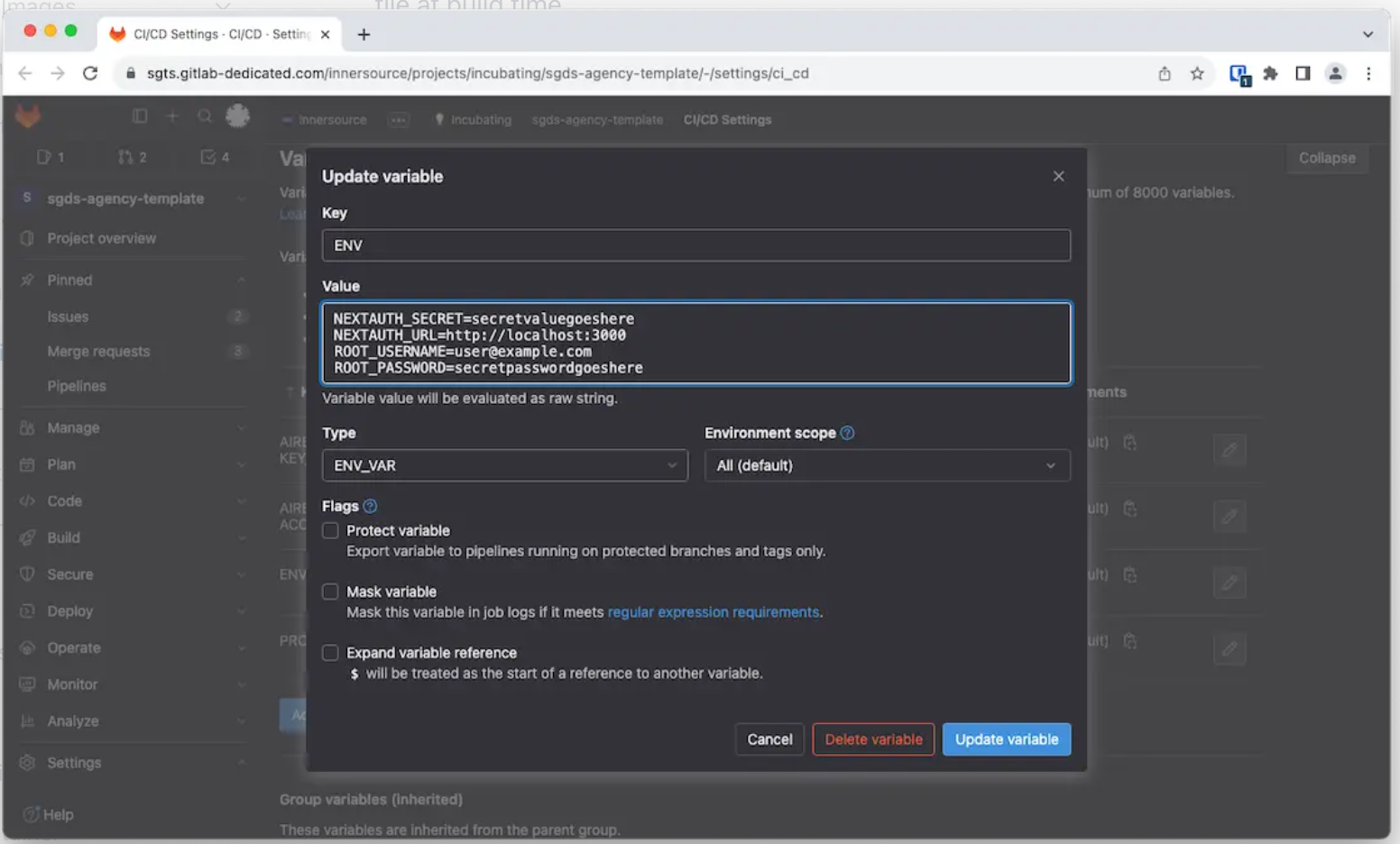
- Variable name:
DATABASE_URL - Value:
postgres://staging-db... - Environment scope:
staging - ✅ Protected: No (unless for protected branches only)
-
✅ Masked: Yes (hides in logs)
-
Repeat for other environments:
| Variable | Value | Environment Scope |
|---|---|---|
DATABASE_URL | postgres://prod-db... | production |
DATABASE_URL | postgres://staging-db... | staging |
DATABASE_URL | postgres://dev-db... | review/* |
Environment Scope Matching
The environment scope matches the environment.name in your .gitlab-ci.yml:
# Deploys to staging environment
staging:
  extends: .airbase-deploy
  stage: deploy
  environment:
    name: staging  # ← Matches scope "staging"
  variables:
    AIRBASE_ENVIRONMENT: staging

# Deploys to production environment
production:
  extends: .airbase-deploy
  stage: deploy
  environment:
    name: production  # ← Matches scope "production"
  variables:
    AIRBASE_ENVIRONMENT: default

# Deploys to review environments (feature branches)
review:
  extends: .airbase-deploy
  stage: test
  environment:
    name: review/$CI_COMMIT_REF_SLUG  # ← Matches scope "review/*"
  variables:
    AIRBASE_ENVIRONMENT: $CI_COMMIT_REF_SLUG
Variable Injection at Build Time
The Airbase GitLab pipeline template automatically injects CI/CD variables into .env file:
- CI/CD runs → GitLab selects variables matching environment scope
- Variables injected → Written to
.envfile during build - Container built →
.envfile included in image - Deployed → Application reads variables from
.env
Example CI/CD variable setup:
# In GitLab CI/CD Variables:

# Production
AIRBASE_ENV_LOCAL_FILE (scope: production)
DATABASE_URL=postgres://prod-db.aws.com/myapp
API_KEY=prod_key_abc123
LOG_LEVEL=info

# Staging
AIRBASE_ENV_LOCAL_FILE (scope: staging)
DATABASE_URL=postgres://staging-db.aws.com/myapp
API_KEY=staging_key_xyz789
LOG_LEVEL=debug

# Review branches
AIRBASE_ENV_LOCAL_FILE (scope: review/*)
DATABASE_URL=postgres://dev-db.aws.com/myapp
API_KEY=dev_key_test456
LOG_LEVEL=debug
Best Practices for CI/CD Variables
1. Use environment scoping for all secrets:
✅ Good:
DATABASE_URL (scope: production) = postgres://prod...
DATABASE_URL (scope: staging) = postgres://staging...

❌ Bad:
PROD_DATABASE_URL (scope: *)
STAGING_DATABASE_URL (scope: *)
2. Set AIRBASE_ENV_LOCAL_FILE as File type: - Type: File (not Variable) - Contains full .env content - One per environment scope
3. Mark sensitive variables as Masked: - ✅ Masked: Prevents values appearing in logs - ✅ Protected: Only available on protected branches (optional)
4. Use wildcard scoping for review environments: - review/* matches all review branch environments - review/feature-auth, review/bugfix-123, etc.
Verifying CI/CD Variable Injection
Check pipeline logs:
# Look for variable loading in build logs
✓ Loaded 12 environment variables
✓ DATABASE_URL: postgres://staging-db...***
✓ API_KEY: ********
Check deployed application: View logs after deployment: - Open Airbase Console - Navigate to your project → Logs - Select staging environment - Your app should show environment info on startup
Migrating from .env Files to CI/CD Variables
Current setup (committed .env files):
Migrated setup (CI/CD variables):
# Project structure
.env.example            # ✅ Template only, committed
# No .env files committed

# GitLab CI/CD Variables
AIRBASE_ENV_LOCAL_FILE (scope: production)  # ✅ Secrets in GitLab
AIRBASE_ENV_LOCAL_FILE (scope: staging)     # ✅ Secrets in GitLab
Migration steps:
- Copy .env content to GitLab:
- Go to Settings → CI/CD → Variables
- Add
AIRBASE_ENV_LOCAL_FILE(Type: File) - Paste full
.envcontent as value -
Set environment scope
-
Remove .env files from Git:
-
Keep .env.example for documentation:
See Also
- How-To: GitLab CI/CD Integration - Full GitLab CI setup
- Reference: Environment Variables - Variable reference
Updating Environment Variables
Option 1: Update File and Redeploy
When to use: Changing variable values
Steps:
-
Edit
.env.staging: -
Redeploy (no rebuild needed):
Important: You do NOT need to rebuild the container. Just redeploy!
What happens: - Existing container updated with new variables - Application restarted with new config - No image rebuild required
Option 2: Deploy Different Image with Same Variables
When to use: Updating code, keeping same variables
Steps:
- Make code changes
-
Rebuild:
-
Deploy:
What happens: - New image built - Deployed with existing .env.staging variables - Variables remain unchanged
Common Use Cases
Use Case 1: Different Database Per Environment
Goal: Use separate databases for staging and production
Production (.env):
Staging (.env.staging):
Development (.env.development):
Use Case 2: Feature Flags
Goal: Enable features only in specific environments
Production (.env):
Staging (.env.staging):
Use Case 3: External API Keys
Goal: Use different API keys per environment
Production (.env):
Staging (.env.staging):
Use Case 4: Logging Levels
Goal: More verbose logging in non-production
Production (.env):
Staging (.env.staging):
Security Best Practices
1. Never Commit Secrets to Git
Add to .gitignore:
Result: Environment files ignored, example file kept.
2. Use .env.example for Documentation
Create .env.example with dummy values:
# .env.example
PORT=3000
NODE_ENV=production
DATABASE_URL=postgres://your-db-host/your-database
API_KEY=your-api-key-here
LOG_LEVEL=error
Commit this file - It documents required variables without exposing secrets.
3. Rotate Secrets Regularly
Bad practice:
Good practice:
4. Use Different Secrets Per Environment
Bad practice:
Good practice:
5. Validate Required Variables
In your application startup:
Node.js:
const requiredEnvVars = [
  'DATABASE_URL',
  'API_KEY',
  'SESSION_SECRET'
];

for (const varName of requiredEnvVars) {
  if (!process.env[varName]) {
    console.error(`Missing required environment variable: ${varName}`);
    process.exit(1);
  }
}
Python:
import os
import sys

required_vars = ['DATABASE_URL', 'API_KEY', 'SESSION_SECRET']

for var in required_vars:
    if not os.environ.get(var):
        print(f"Missing required environment variable: {var}")
        sys.exit(1)
Variable Naming Conventions
Good Variable Names
# ✅ Clear and descriptive
DATABASE_URL=postgres://...
API_BASE_URL=https://api.example.com
MAX_UPLOAD_SIZE_MB=10
ENABLE_FEATURE_X=true
SMTP_HOST=smtp.example.com

# ✅ Consistent naming
DB_HOST=localhost
DB_PORT=5432
DB_NAME=myapp
DB_USER=admin
DB_PASSWORD=secret
Bad Variable Names
# ❌ Vague or unclear
URL=postgres://...
KEY=xyz
SIZE=10
FLAG=true
HOST=smtp.example.com

# ❌ Inconsistent naming
database_host=localhost
DatabasePort=5432
db-name=myapp
DBUSER=admin
db_pass=secret
Naming Convention Recommendations
- Use UPPER_SNAKE_CASE (standard for environment variables)
- Be descriptive (prefer
DATABASE_URLoverDB) - Group related variables (prefix with common name)
- Use consistent units (e.g.,
TIMEOUT_SECONDSnotTIMEOUT)
Troubleshooting
Issue: Variables not available in container
Symptom: Application can't read environment variables
Causes: 1. Wrong file name 2. File not in project root 3. Syntax errors in .env file
Solution:
Check file location:
Check file syntax (no spaces around =):
# ✅ Correct
PORT=3000
DATABASE_URL=postgres://host/db

# ❌ Wrong (spaces around =)
PORT = 3000
DATABASE_URL = postgres://host/db
Issue: Variables not updated after redeployment
Symptom: Old variable values still in use
Cause: Application caching or not restarting
Solution:
Ensure full redeployment:
Check application restarts on new variables (add logging):
Issue: Special characters in values
Symptom: Values with special characters don't work
Cause: Shell escaping issues
Solution:
Quote values with special characters:
# ✅ Correct (quoted)
DATABASE_URL="postgres://user:p@ss!word@host/db"
API_KEY="key-with-$pecial-chars"

# ❌ Wrong (unquoted)
DATABASE_URL=postgres://user:p@ss!word@host/db
API_KEY=key-with-$pecial-chars
Issue: Multiline values
Symptom: Need to store multiline values (e.g., SSH keys)
Solution:
Use quotes and escaped newlines:
# Option 1: Single line with \n
PRIVATE_KEY="-----BEGIN RSA PRIVATE KEY-----\nMIIEpAIBAAKCAQEA...\n-----END RSA PRIVATE KEY-----"

# Option 2: Base64 encode
PRIVATE_KEY_BASE64="LS0tLS1CRUdJTiBSU0EgUFJJVkFURSBLRVktLS0tLQpNSUl..."
In your app, decode:
Advanced Patterns
Pattern 1: Hierarchical Configuration
Use a base config plus environment-specific overrides:
.env.base:
.env.staging:
# Staging-specific (inherits from base)
NODE_ENV=staging
DATABASE_URL=postgres://staging-db/myapp
LOG_LEVEL=debug
In your app (Node.js example):
import dotenv from 'dotenv';

// Load base config
dotenv.config({ path: '.env.base' });

// Override with environment-specific
const env = process.env.ENVIRONMENT || 'development';
dotenv.config({ path: `.env.${env}` });
Pattern 2: Typed Environment Variables
TypeScript example:
// src/config.ts
interface Config {
  port: number;
  nodeEnv: string;
  databaseUrl: string;
  logLevel: 'debug' | 'info' | 'warn' | 'error';
}

function loadConfig(): Config {
  const port = parseInt(process.env.PORT || '3000', 10);
  const nodeEnv = process.env.NODE_ENV || 'development';
  const databaseUrl = process.env.DATABASE_URL;
  const logLevel = (process.env.LOG_LEVEL || 'info') as Config['logLevel'];

  if (!databaseUrl) {
    throw new Error('DATABASE_URL is required');
  }

  return { port, nodeEnv, databaseUrl, logLevel };
}

export const config = loadConfig();
Usage:
import { config } from './config';

console.log(`Server running on port ${config.port}`);
// TypeScript knows config.port is a number
Pattern 3: Environment-Specific Feature Flags
Create feature flag system:
.env.staging:
In your app:
const enabledFeatures = new Set(
  (process.env.FEATURES || '').split(',').filter(Boolean)
);

function isFeatureEnabled(feature) {
  return enabledFeatures.has(feature);
}

// Usage
if (isFeatureEnabled('new-ui')) {
  // Enable new UI
}
Example: Complete Setup
Here's a complete example for a Node.js + PostgreSQL app:
.env.example
# Server
PORT=3000
NODE_ENV=production

# Database
DATABASE_URL=postgres://user:password@host:5432/database
DB_POOL_MIN=2
DB_POOL_MAX=10
DB_SSL=true

# External APIs
SENDGRID_API_KEY=your-sendgrid-key
STRIPE_API_KEY=your-stripe-key

# Features
ENABLE_REGISTRATION=true
ENABLE_EMAIL_VERIFICATION=true

# Logging
LOG_LEVEL=info
LOG_FORMAT=json
.env (Production)
# Server
PORT=3000
NODE_ENV=production

# Database
DATABASE_URL=postgres://produser:Xy9$mK2@prod-db.internal:5432/myapp
DB_POOL_MIN=5
DB_POOL_MAX=20
DB_SSL=true

# External APIs
SENDGRID_API_KEY=SG.live.abc123xyz
STRIPE_API_KEY=sk_live_xyz123abc

# Features
ENABLE_REGISTRATION=true
ENABLE_EMAIL_VERIFICATION=true

# Logging
LOG_LEVEL=error
LOG_FORMAT=json
.env.staging
# Server
PORT=3000
NODE_ENV=staging

# Database
DATABASE_URL=postgres://staginguser:password123@staging-db.internal:5432/myapp
DB_POOL_MIN=2
DB_POOL_MAX=10
DB_SSL=true

# External APIs
SENDGRID_API_KEY=SG.test.xyz789abc
STRIPE_API_KEY=sk_test_abc789xyz

# Features
ENABLE_REGISTRATION=true
ENABLE_EMAIL_VERIFICATION=false

# Logging
LOG_LEVEL=debug
LOG_FORMAT=pretty
Deploy
# Deploy to staging
airbase container build
airbase container deploy --yes staging

# Test in staging

# Deploy to production
airbase container deploy --yes
Checklist
Before deploying:
- Created
.env.examplewith all required variables - Created environment-specific files (
.env,.env.staging) - Added
.env*to.gitignore(except.env.example) - Validated no secrets in git history
- Used different secrets per environment
- Tested application reads variables correctly
- Added variable validation in application startup
- Documented all variables in
.env.example
See Also
- How-To: Build and Deploy - Deployment workflow
- How-To: Manage Environments - Environment management
- Reference: airbase.json Configuration - Airbase configuration
- Explanation: Environment Variables Design - Why environment variables